Say it or type it
Start an agent with a typed, dictated, or empty prompt. Launch from the project you’re already exploring.
An AI worker for the things you want to make. Apps, websites, presentations, and whatever comes next. All guided from your phone.
English as a programming language. That’s Englang.
“Make a website
for my little bakery.”
You shouldn’t need to become a programmer before you can begin making something.
Give your AI a brief. Let it work. Look at what it made. Keep shaping it in a conversation—with the actual project always within reach.
Simple enough to start with a sentence.
Deep enough to keep going.
Tell your AI what you want to make, who it’s for, and what matters. Type it, say it, or attach something that explains it better.
Tap a screen to take a closer look.
Native app captures · September 9–13
Fictional demo data · UI still carries the Surfcode name
Swipe to explore. Tap to enlarge.
21 native app captures · Demo data · Surfcode UI
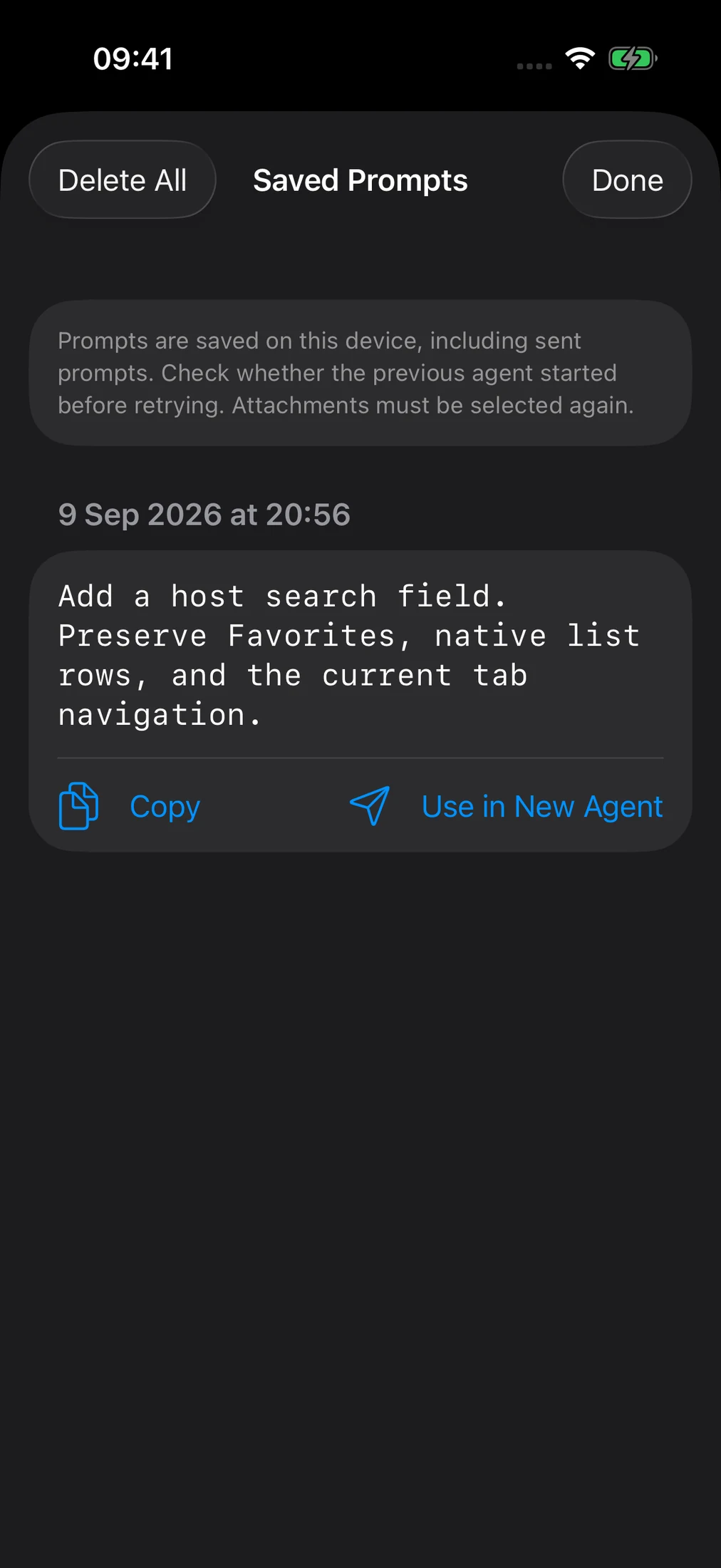
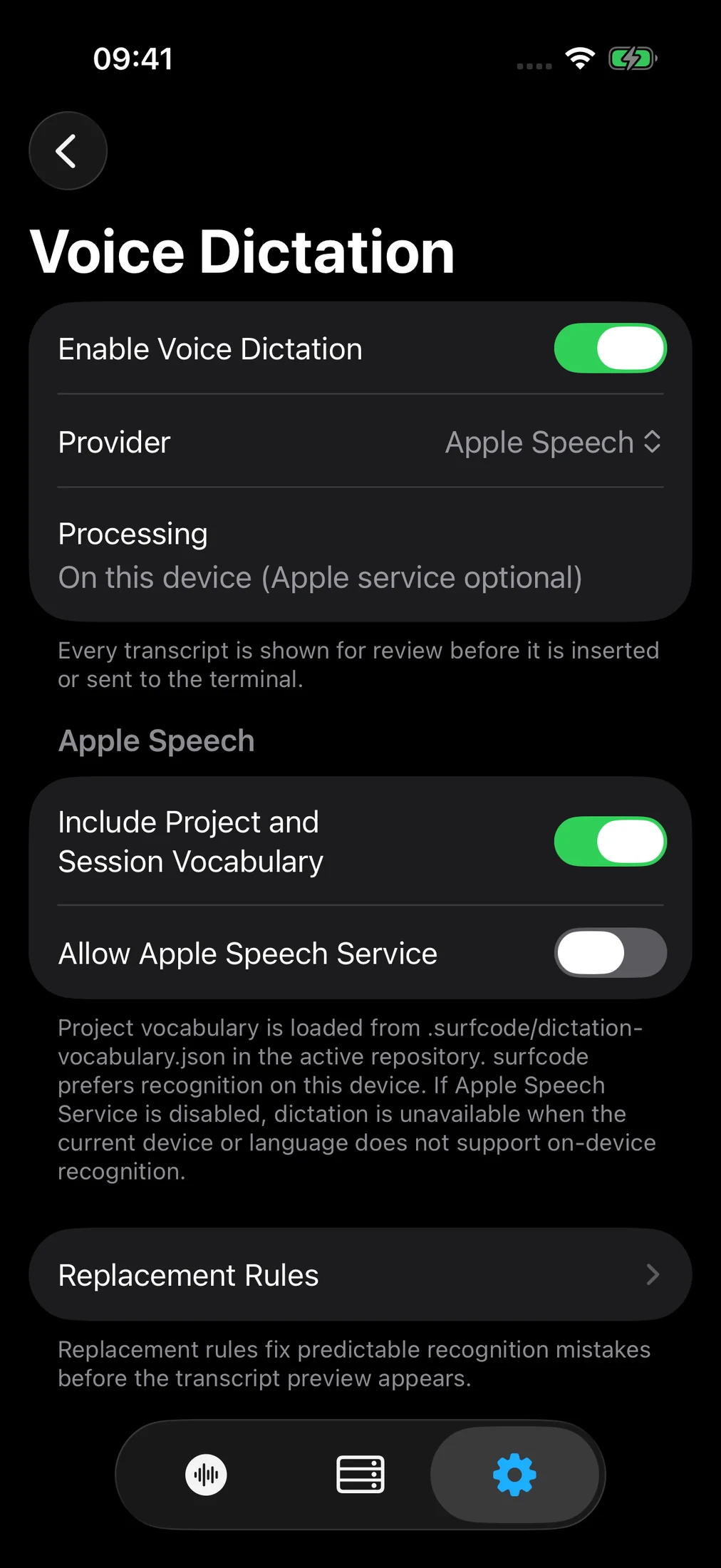
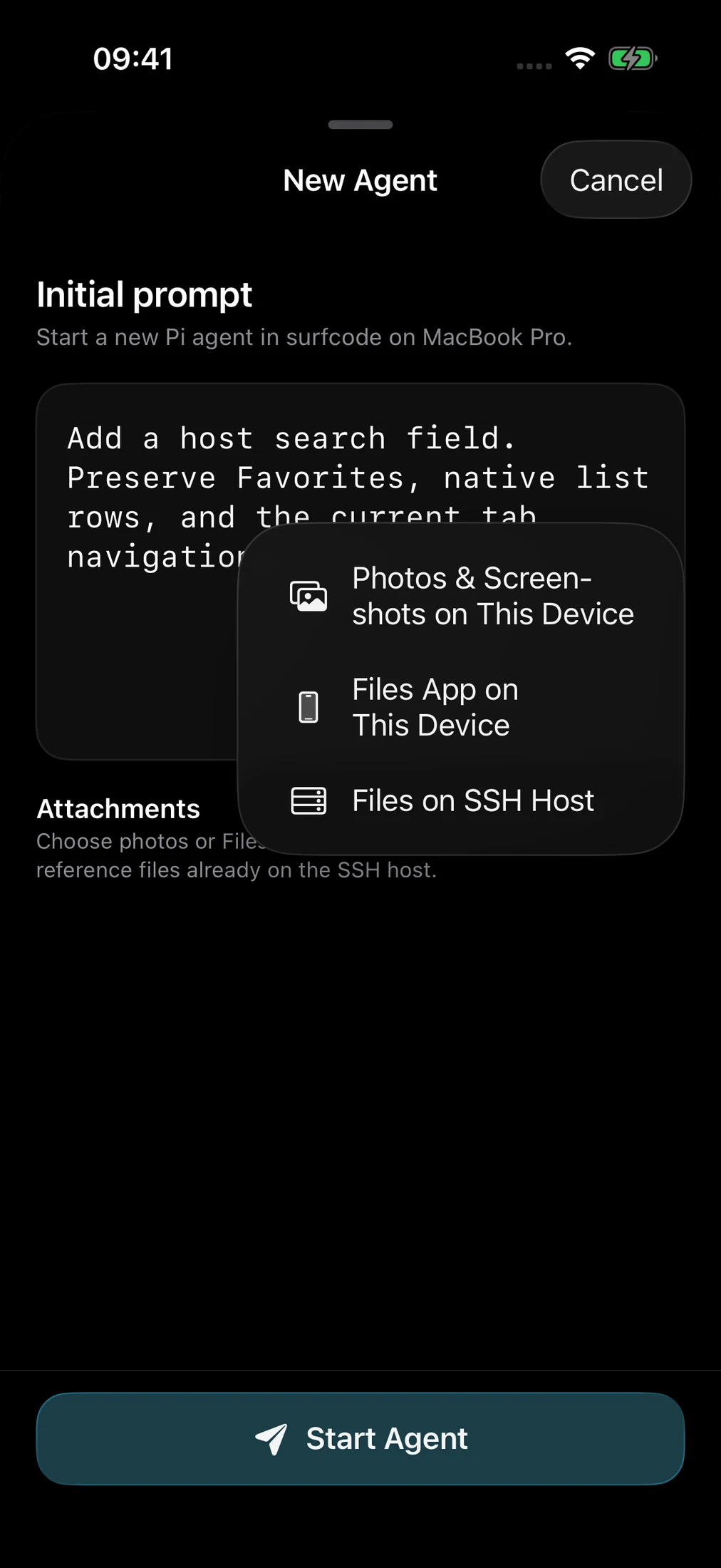
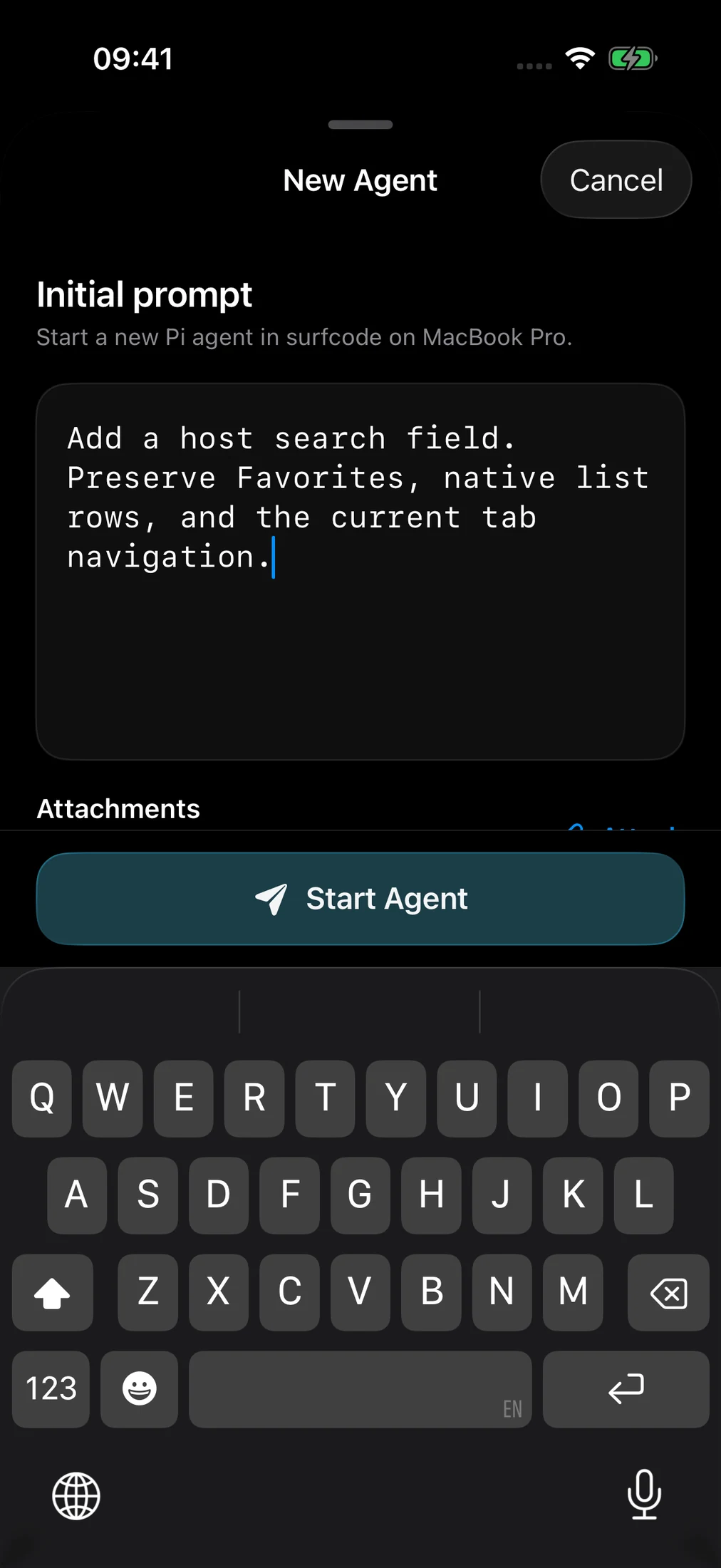
Start an agent with a typed, dictated, or empty prompt. Launch from the project you’re already exploring.
Attach device photos and documents, or reference files already in your workspace.
Apple on-device speech by default. Optional OpenAI, OpenRouter, Wispr Flow, or host-helper transcription, with explicit setup and consent.
Edit a transcript before sending. For existing-agent follow-ups, a deliberate mic hold offers release-to-send.
Project vocabulary and editable replacement rules help recognition understand the words you use.
Reuse locally saved prompts. Keep submission diagnostics and recover text after failed or uncertain delivery; reselect attachments when reusing a prompt.
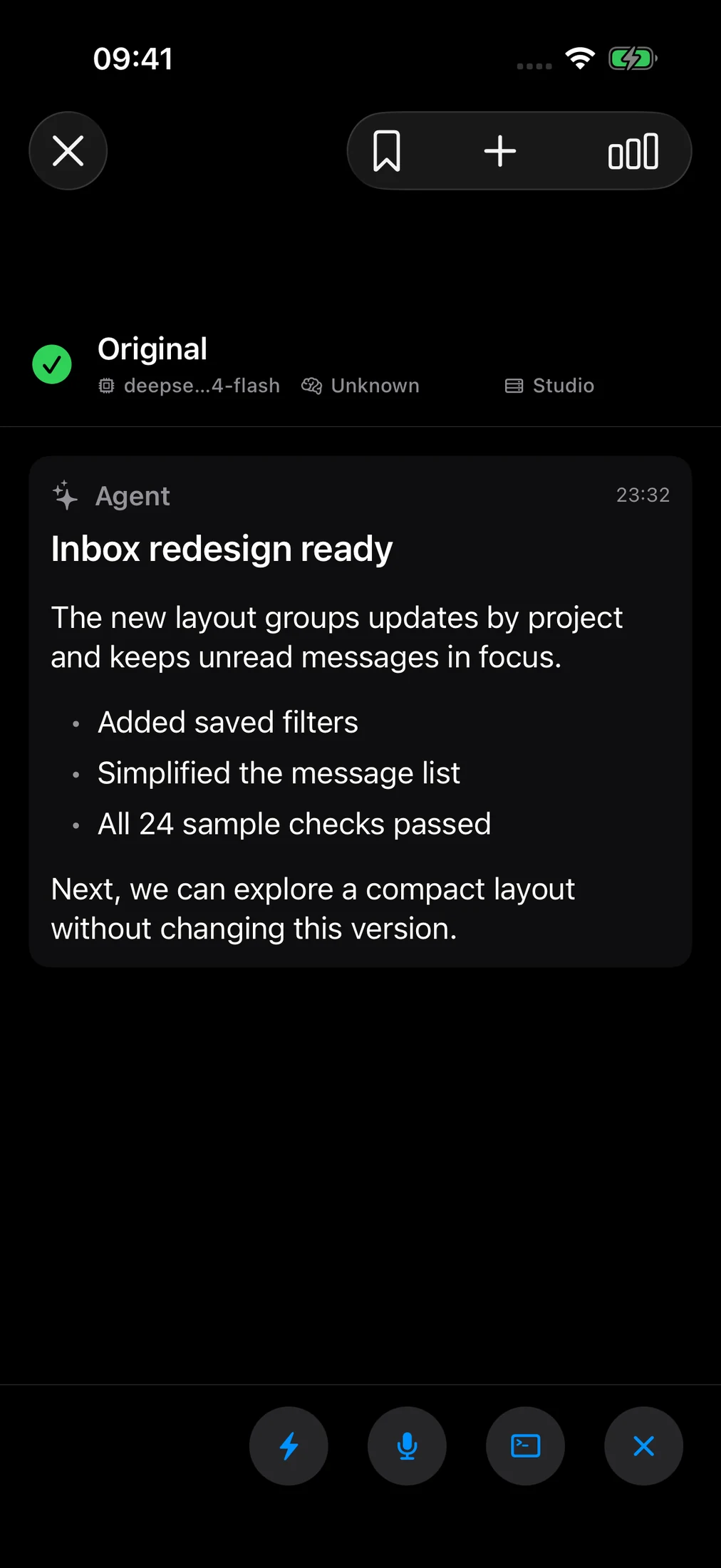
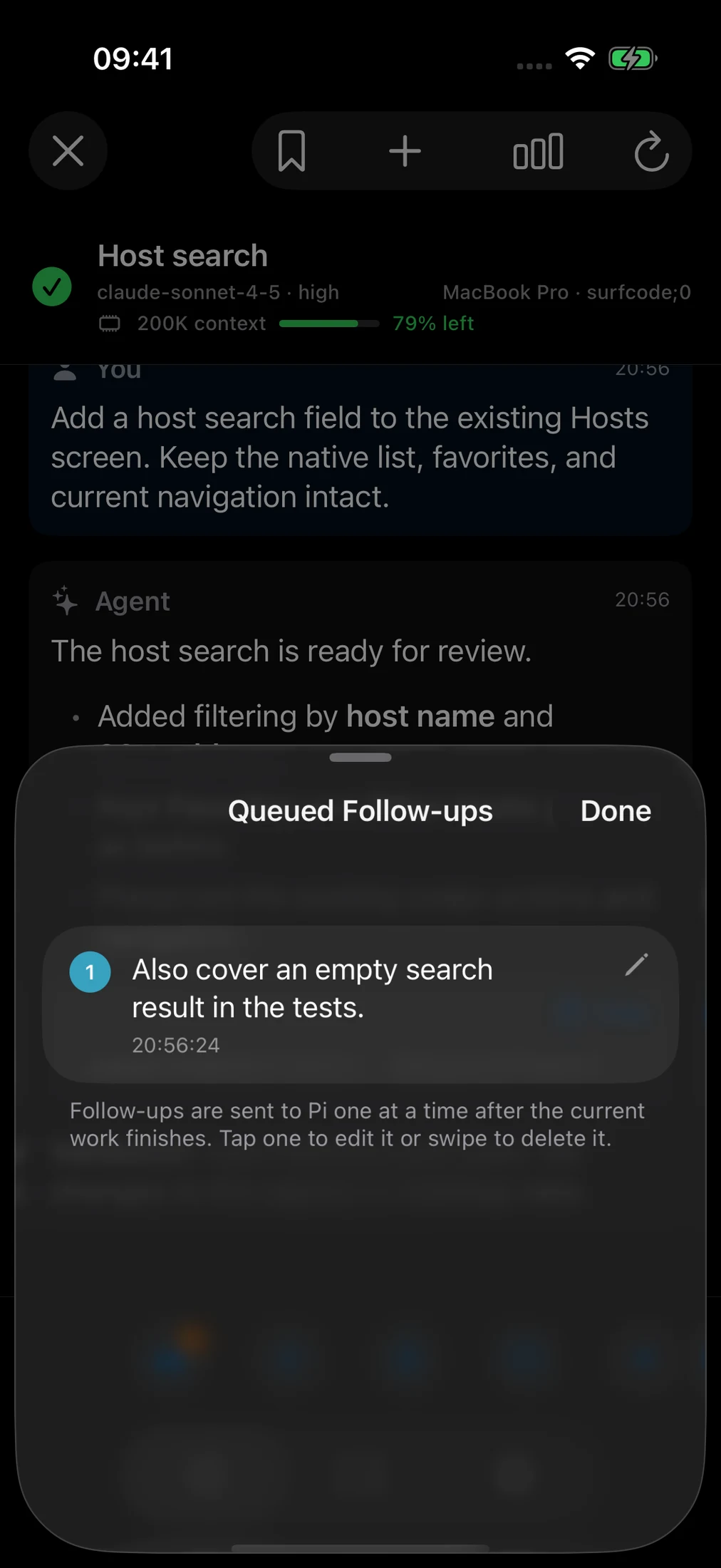
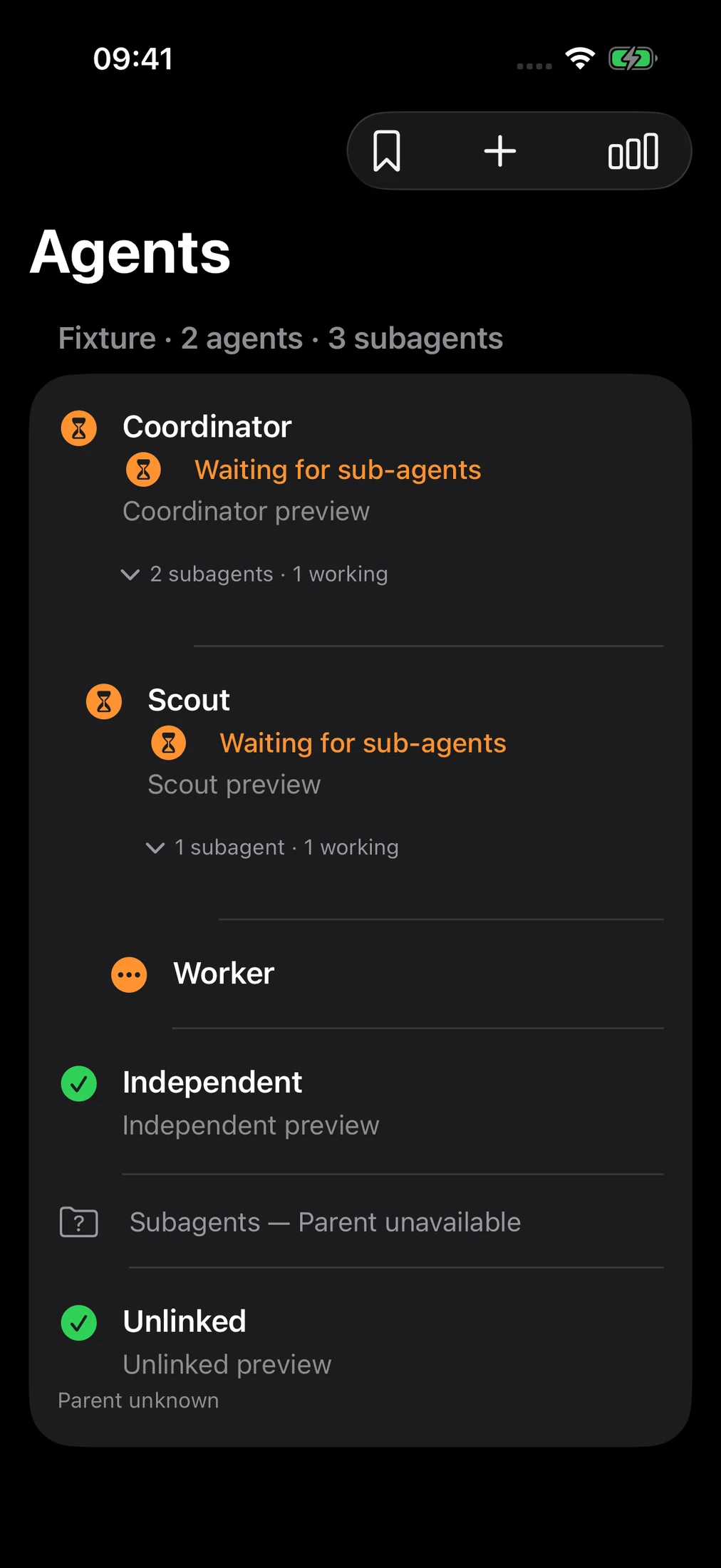
Working, ready, idle and attention states, activity labels, timers, and completed-work durations.
Collapsible subagent trees keep delegated work grouped under its parent, with independent child actions.
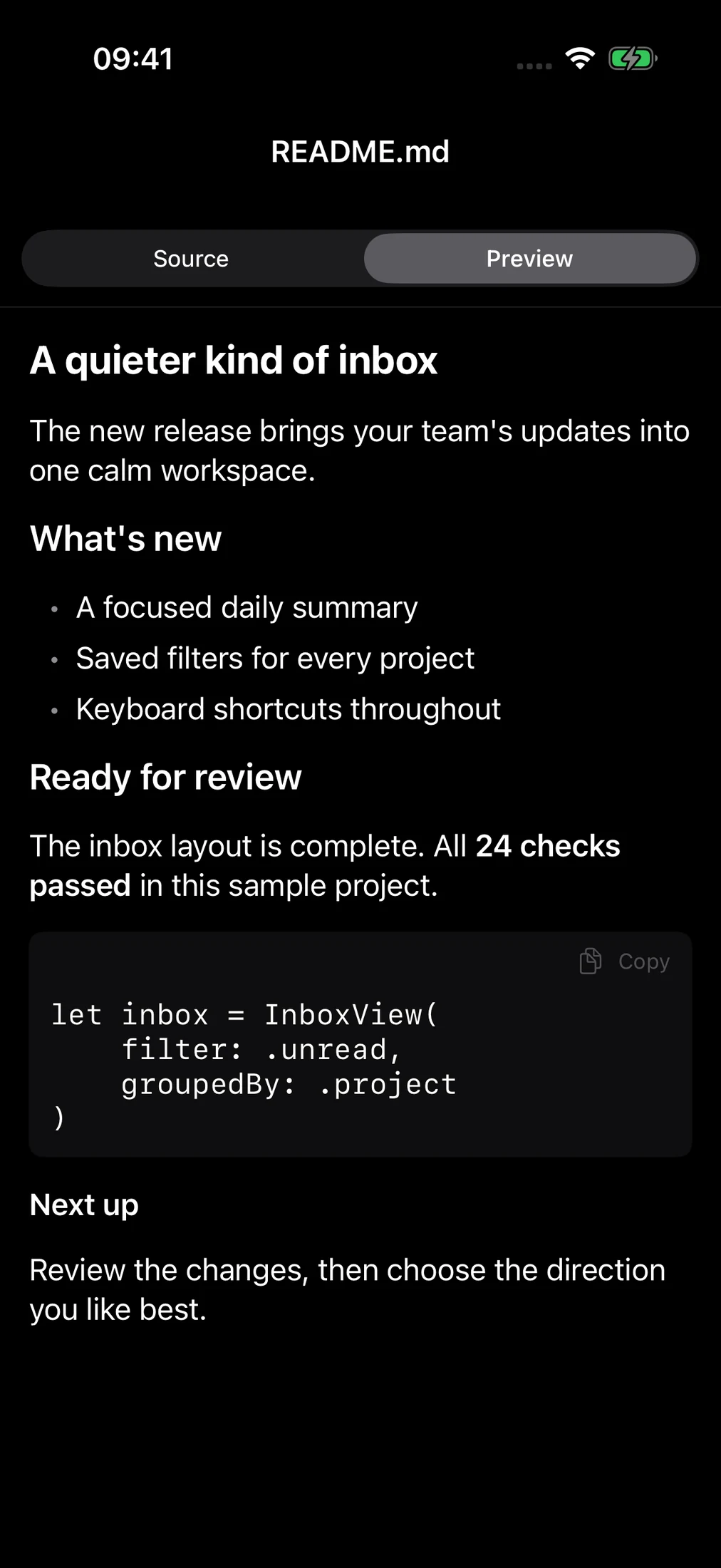
Native Markdown, message copying, links, model details and bounded conversation history. Listen to completed answers with system speech.
Dictated or typed instructions, reusable quick actions, and a managed follow-up queue keep the work moving.
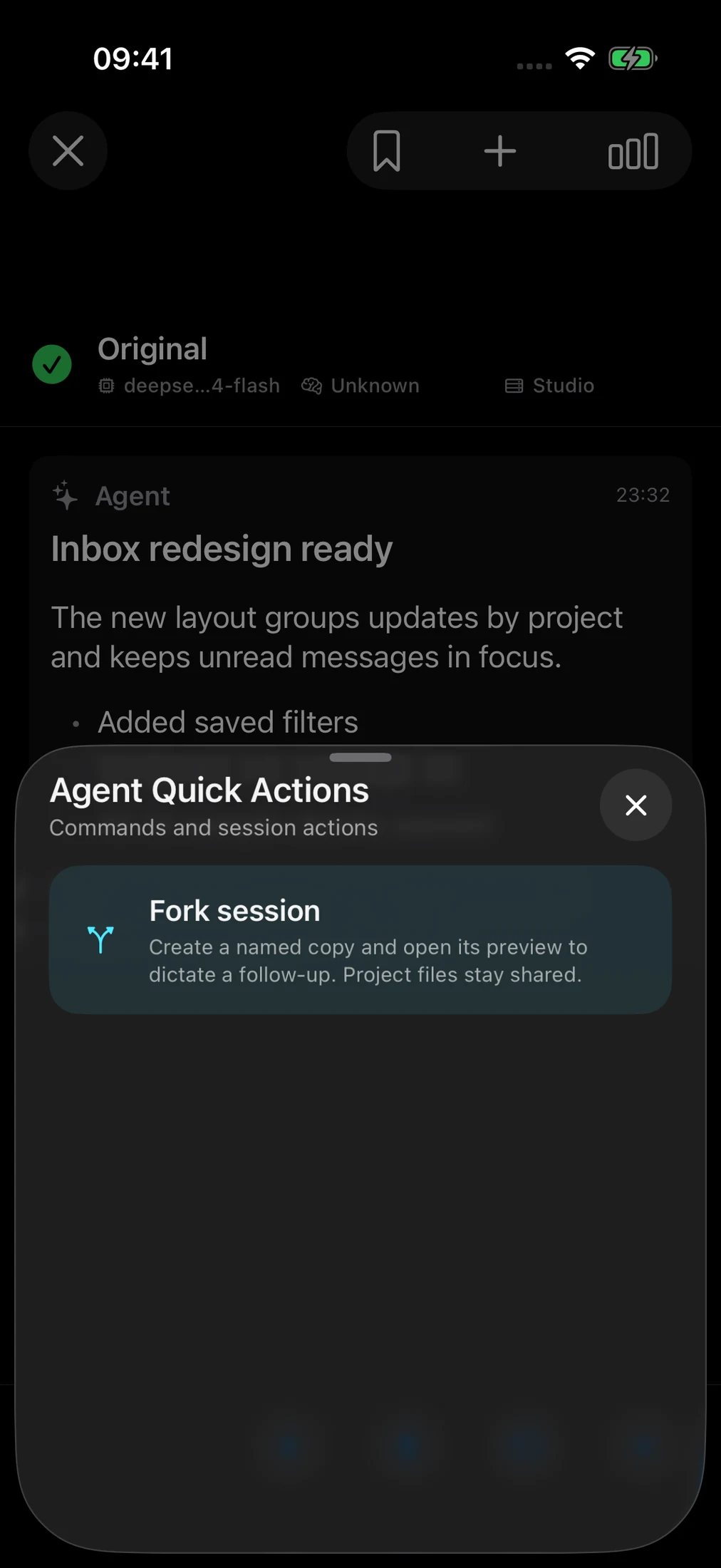
Fork a Pi session with its conversation context. Conversations continue independently; project files remain shared.
Optional named completion notifications open the matching agent preview. Enrollment and notification permission are required.
Scope by favorite or individual hosts, refresh activity, open the exact terminal, and explicitly manage agent/runtime lifecycles.
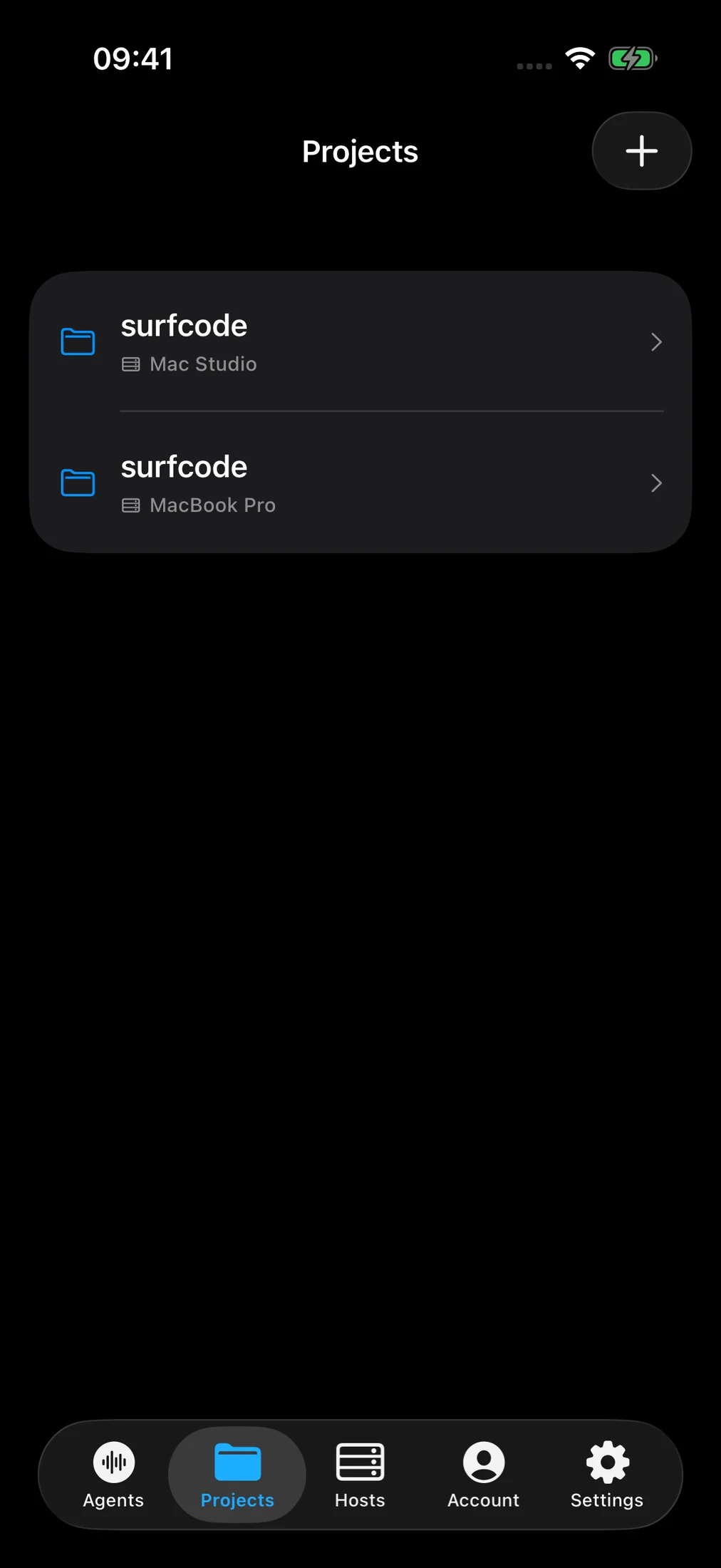
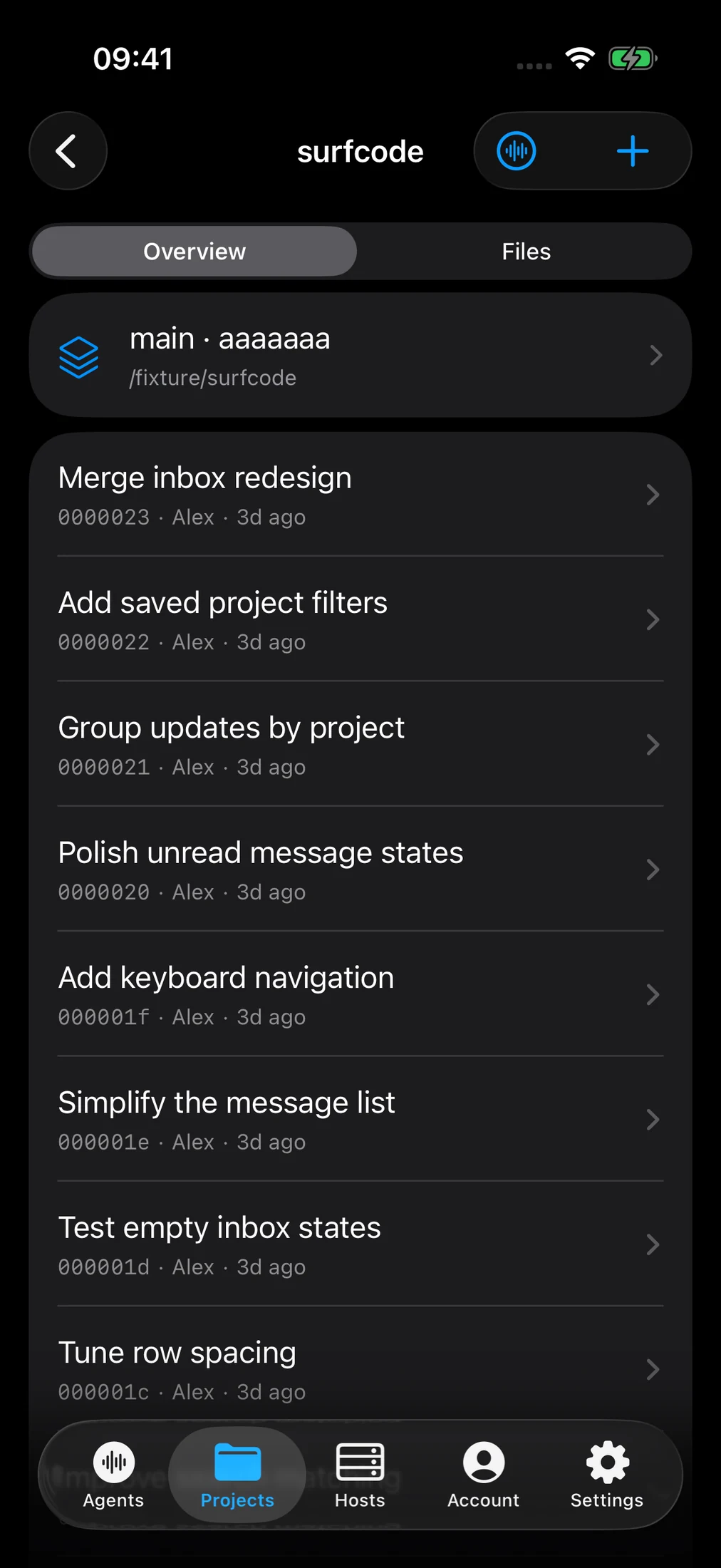
Save repositories, choose an available project, and return to its overview and files.
Launch an empty, typed, or dictated agent from the project header.
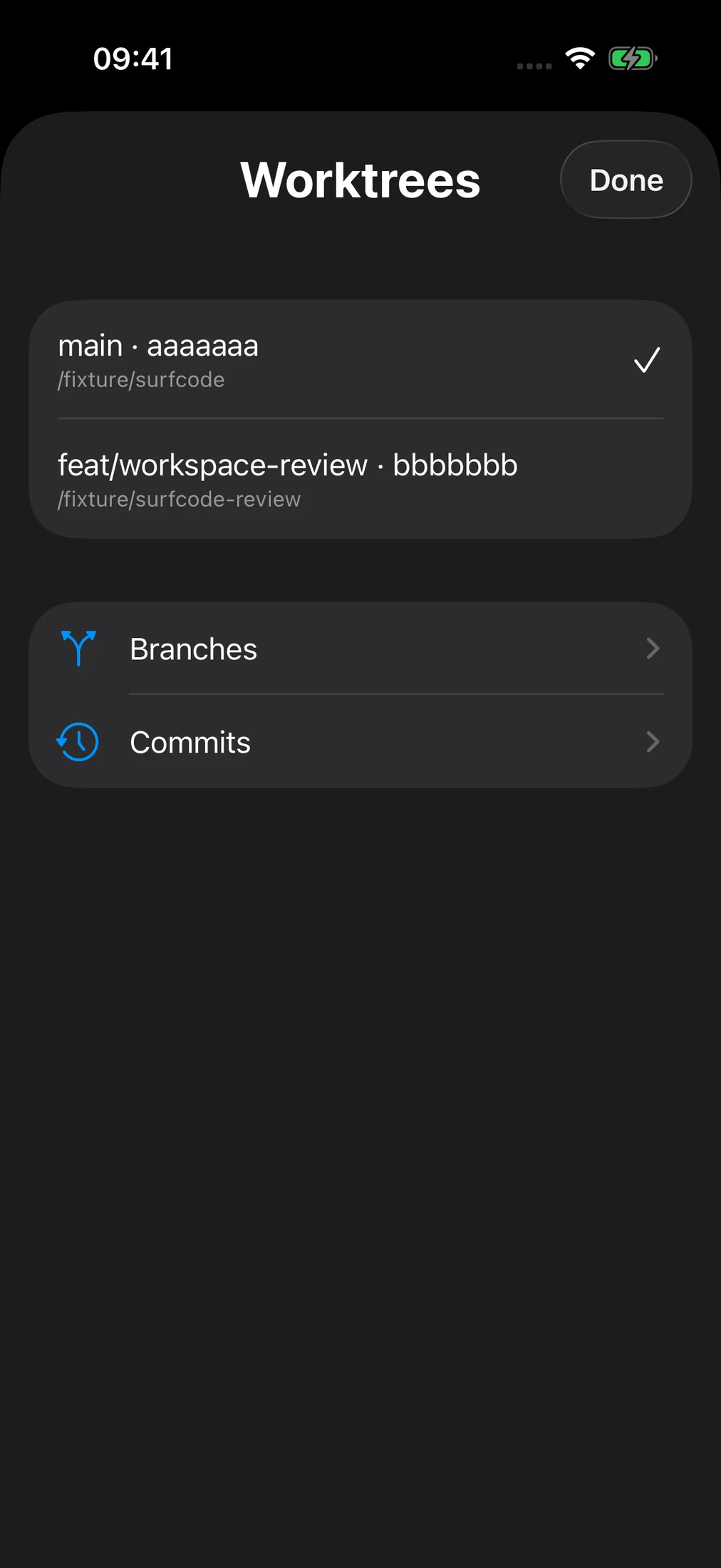
Choose a line of work without losing the surrounding project context.
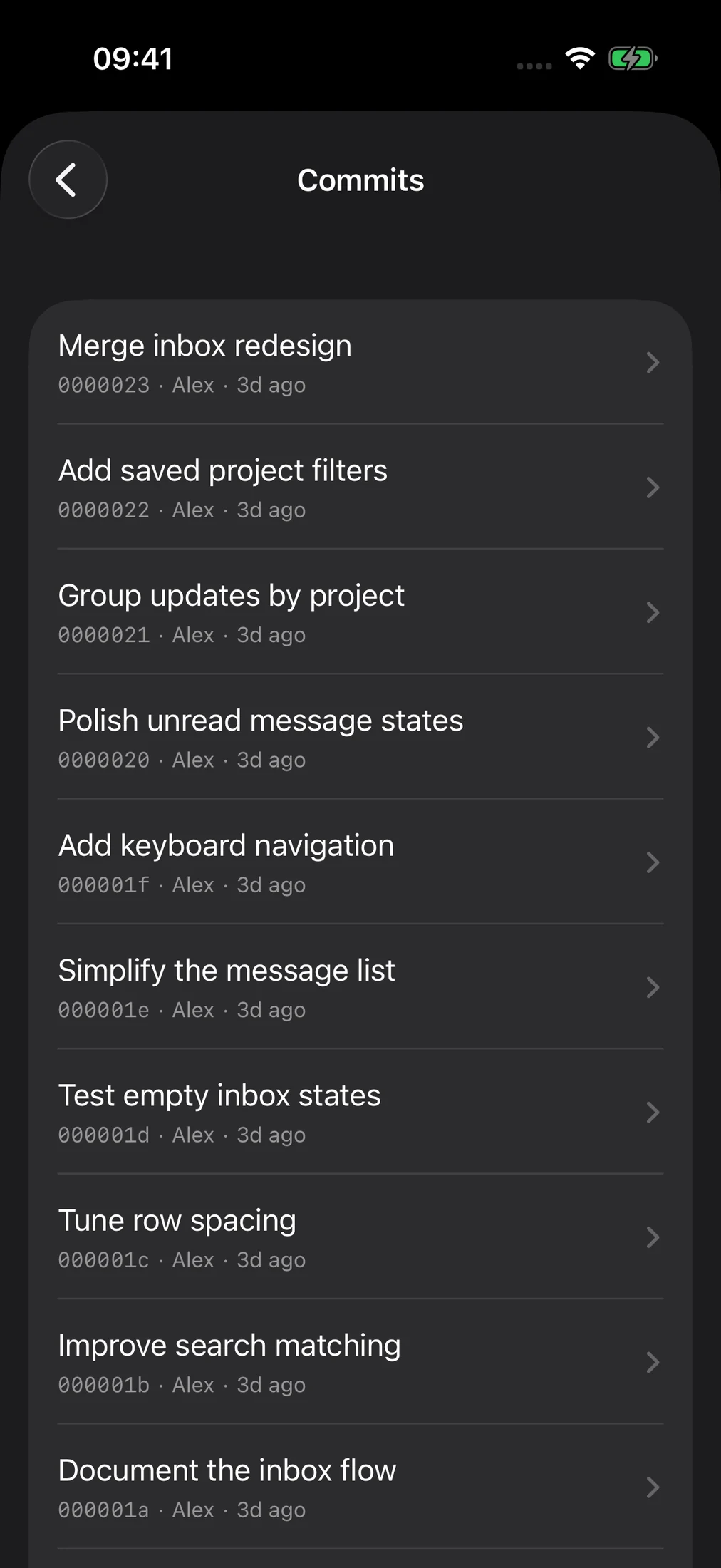
Browse paginated history and open a commit’s changed files. Read another branch without switching its checkout.
Inspect staged and unstaged changes. The separate agent Workspace Changes workflow remains a read-only beta, with explicit source-read consent.
Pull to refresh, retain navigation context where supported, and see explicit stale or unavailable states instead of silent fallbacks.
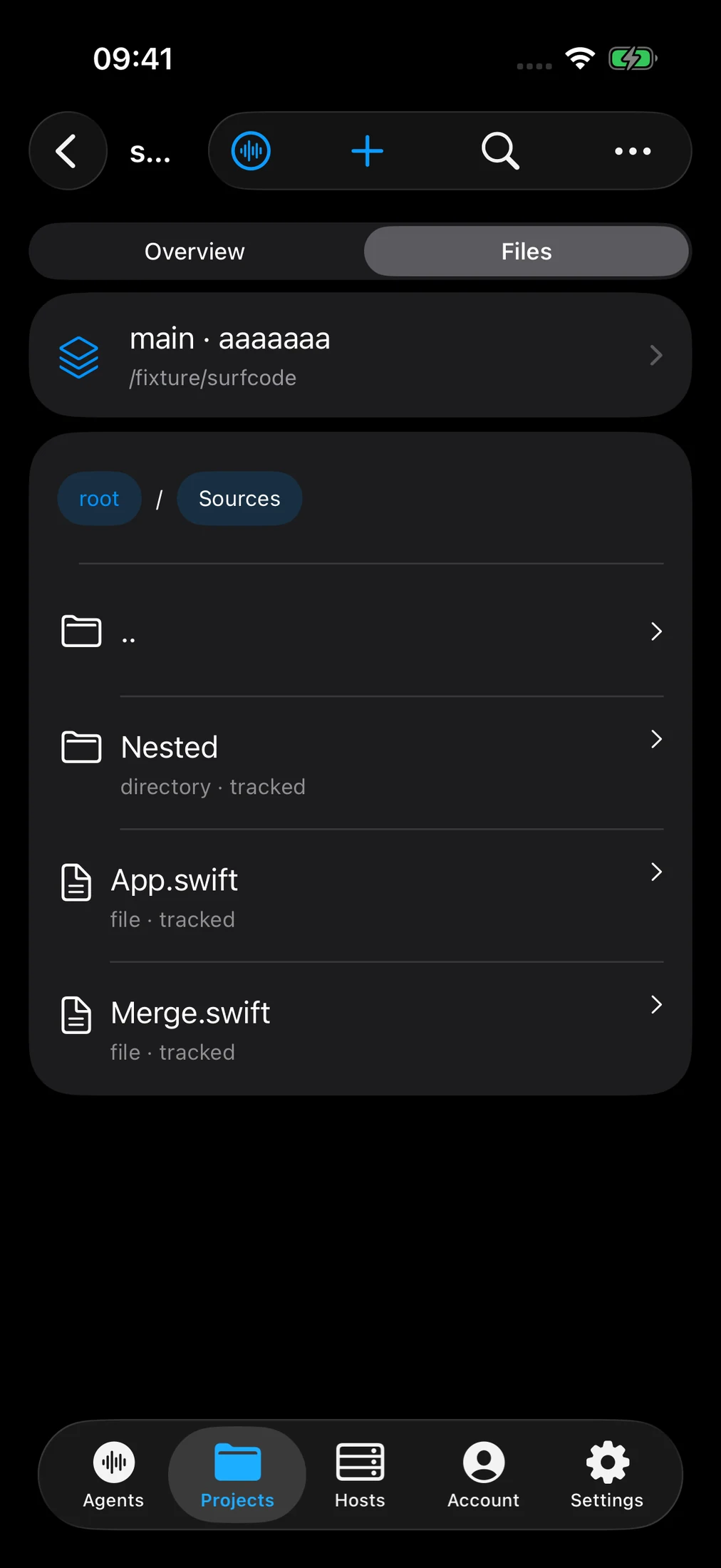
Open folders, follow breadcrumbs, and search file paths in a project.
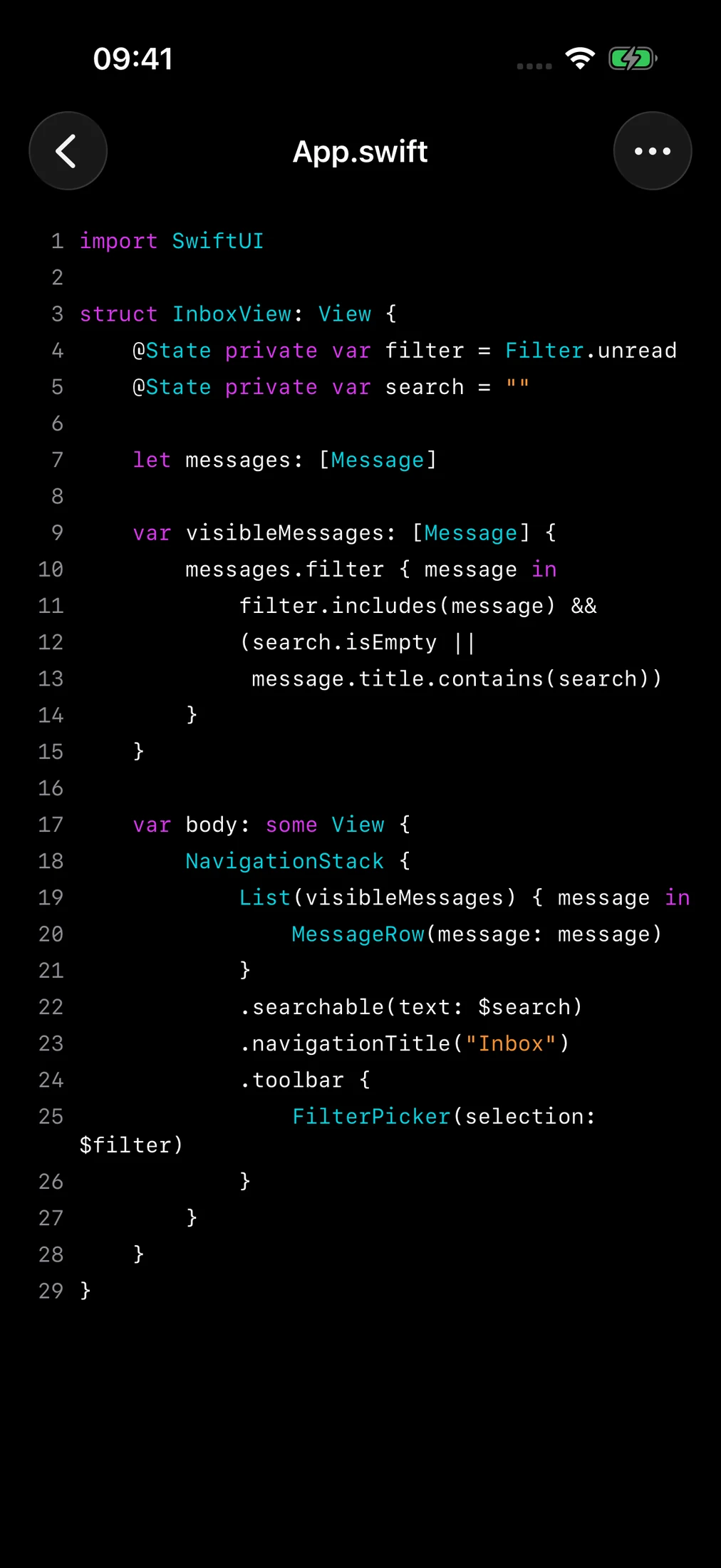
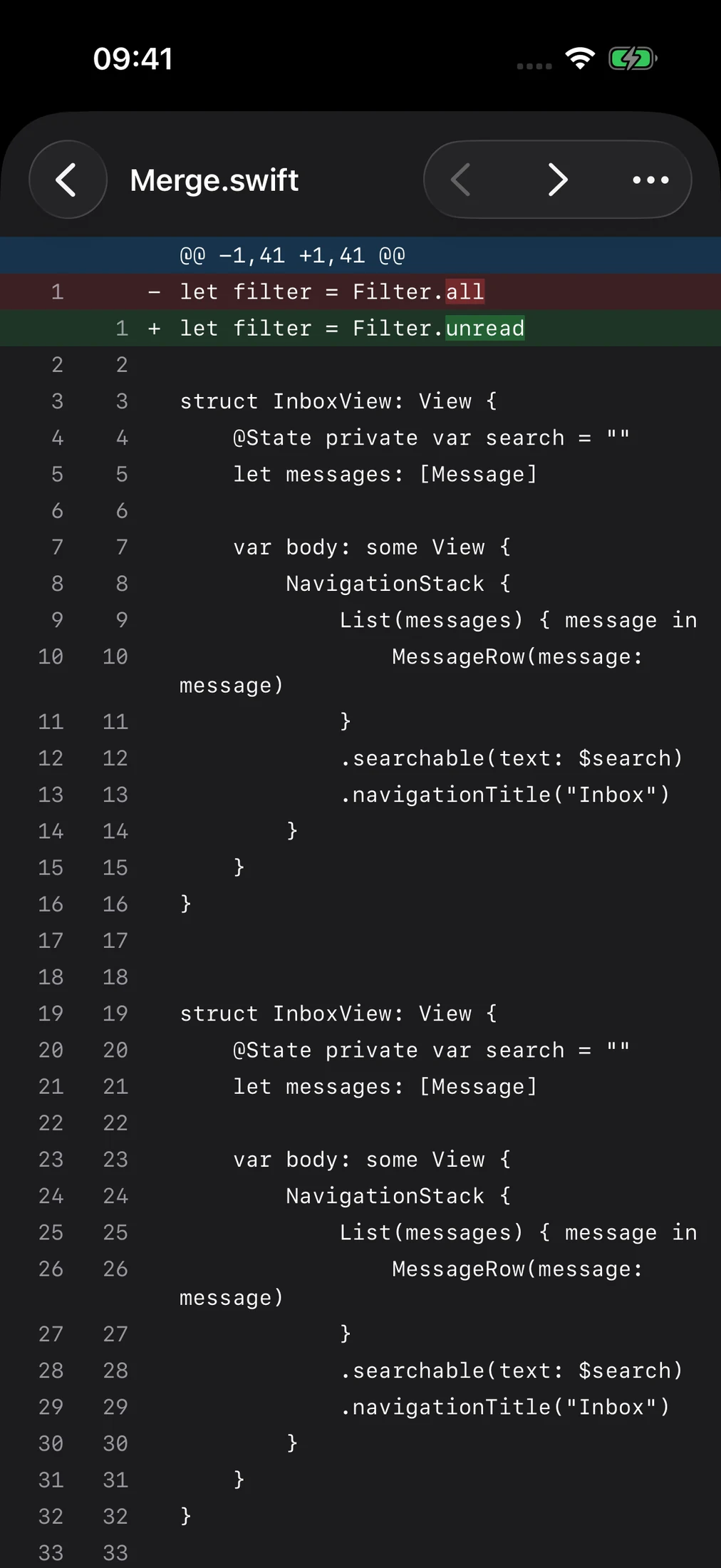
Native syntax highlighting, line numbers, text selection and source copying.
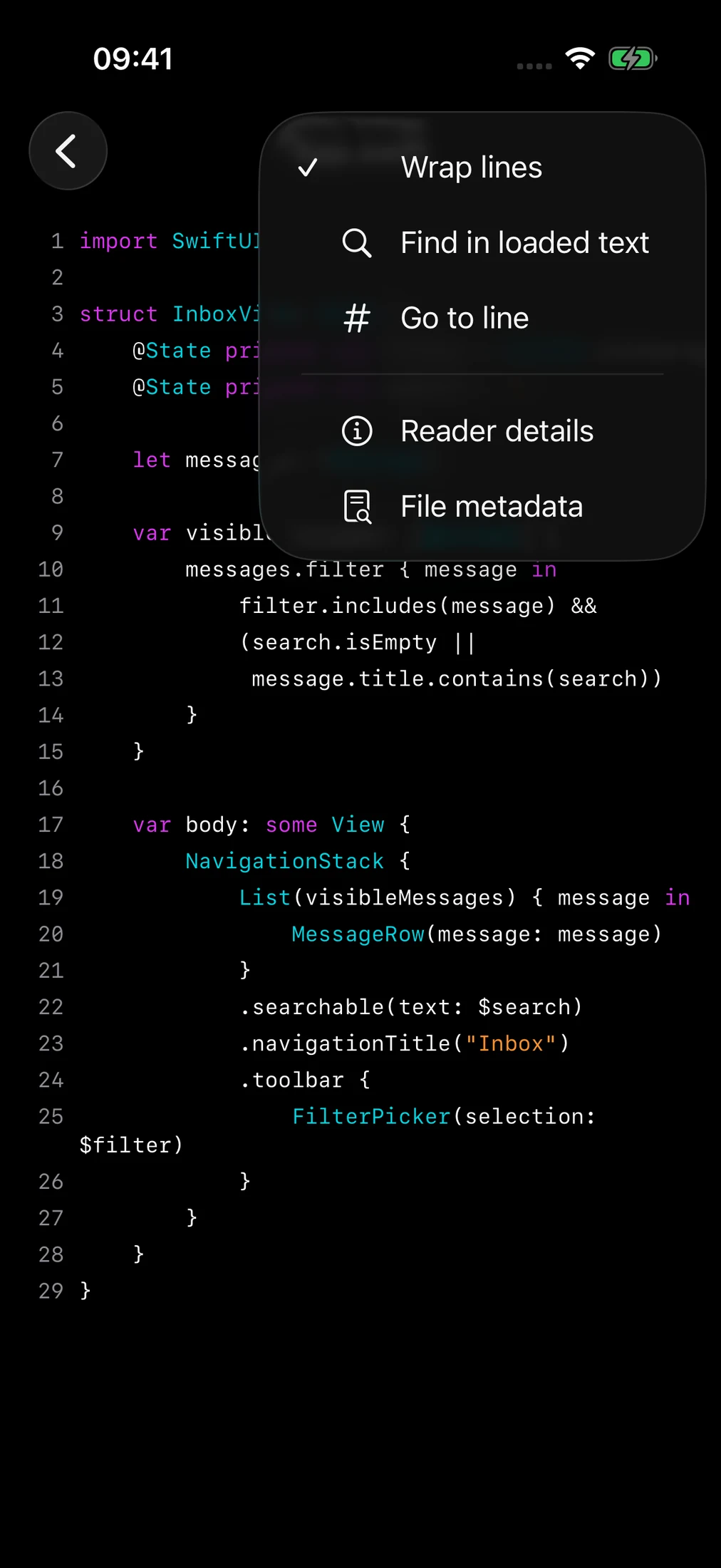
Find loaded text, go to a line, toggle wrapping, or open file and reader details.
Added and removed lines, changed-text highlighting and previous/next change-block navigation.
Inspect available working and committed file versions, including parent-specific commit comparisons.
Large, binary, unsupported, missing and unavailable files are identified explicitly; a limited read is not presented as a complete one.
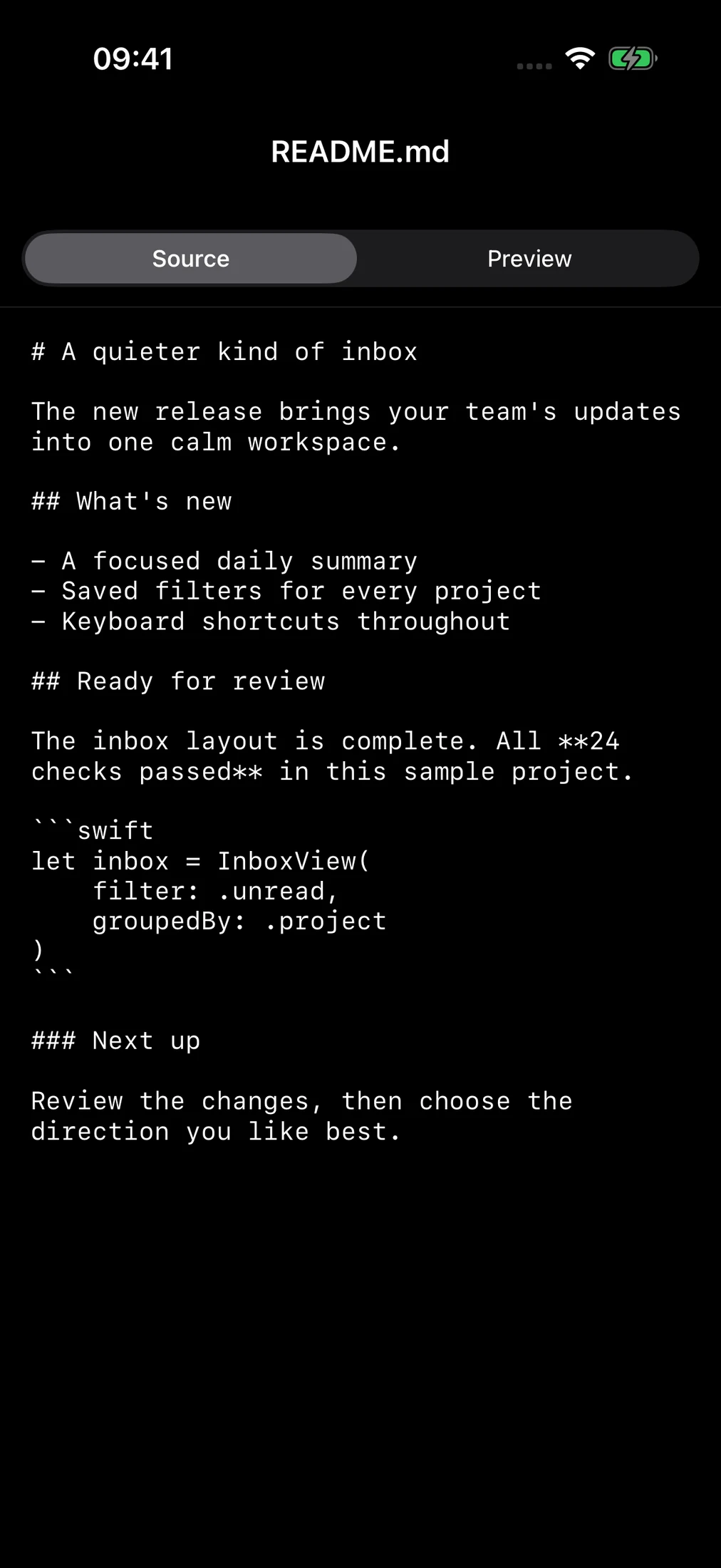
Read supported workspace files directly from links in an agent conversation.
Switch Markdown and HTML between their source and rendered presentation.
View supported images and PDFs alongside plain text documents.
Scripts, external assets and navigation are blocked in HTML previews. This is a safe document view, not a full interactive website test.
Review the result before relying on it or sharing it. Generated output still needs a human’s attention.
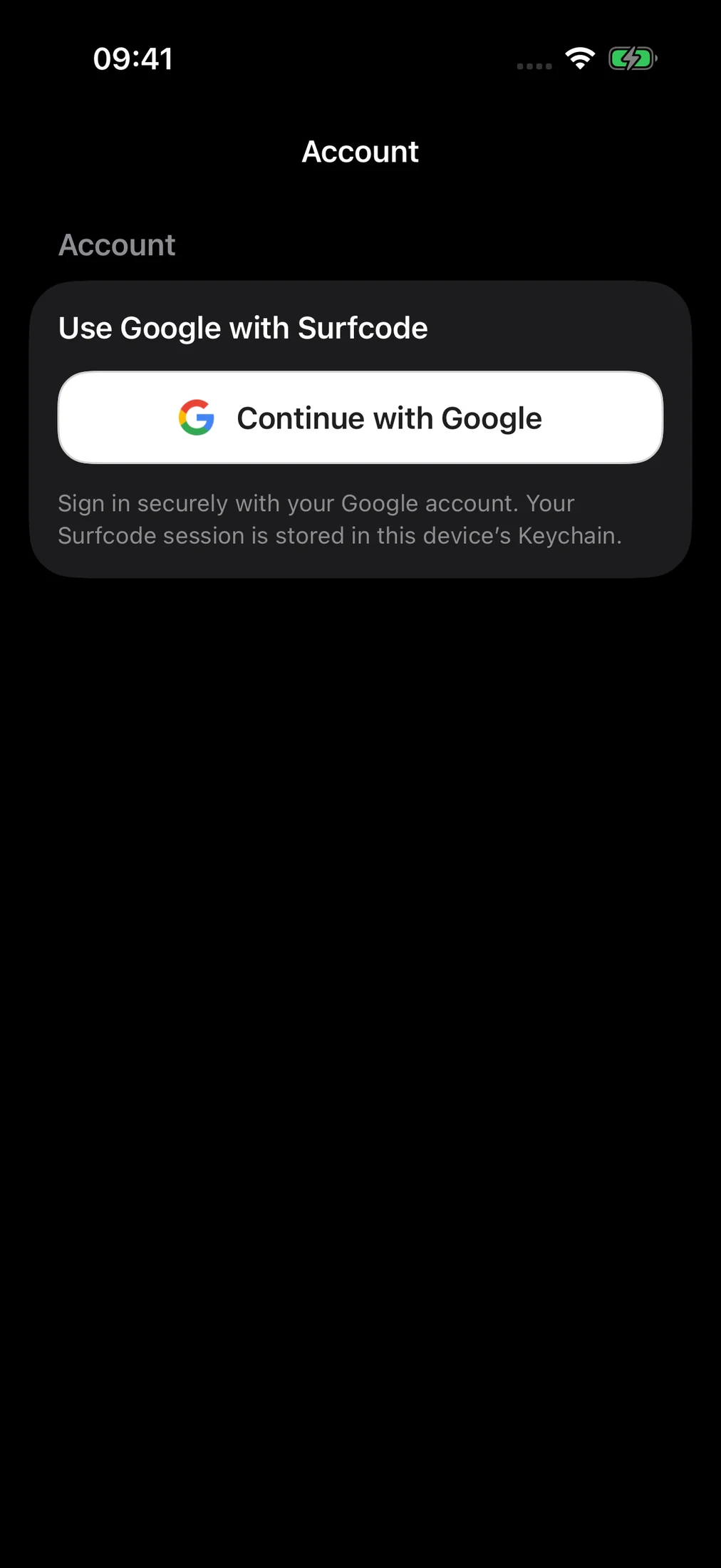
Approved Google accounts can start automatic private-workspace setup, with the agent environment prepared for them.
The hosted gateway doesn’t require the user to connect their own Mac or install Tailscale on their phone.
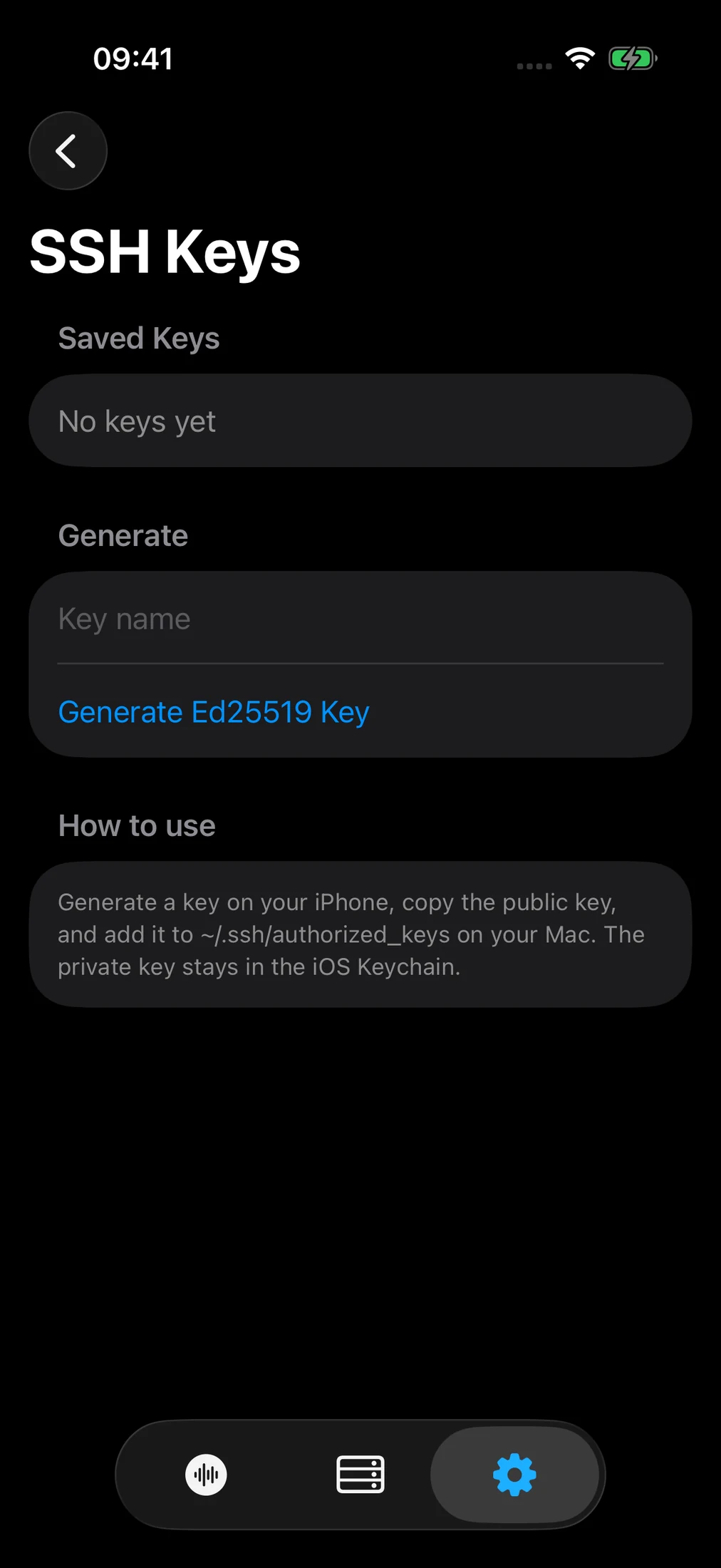
Save manual SSH hosts, manage device-generated Ed25519 keys, and retain host-key trust checks. Manual SSH does not require a hosted account.
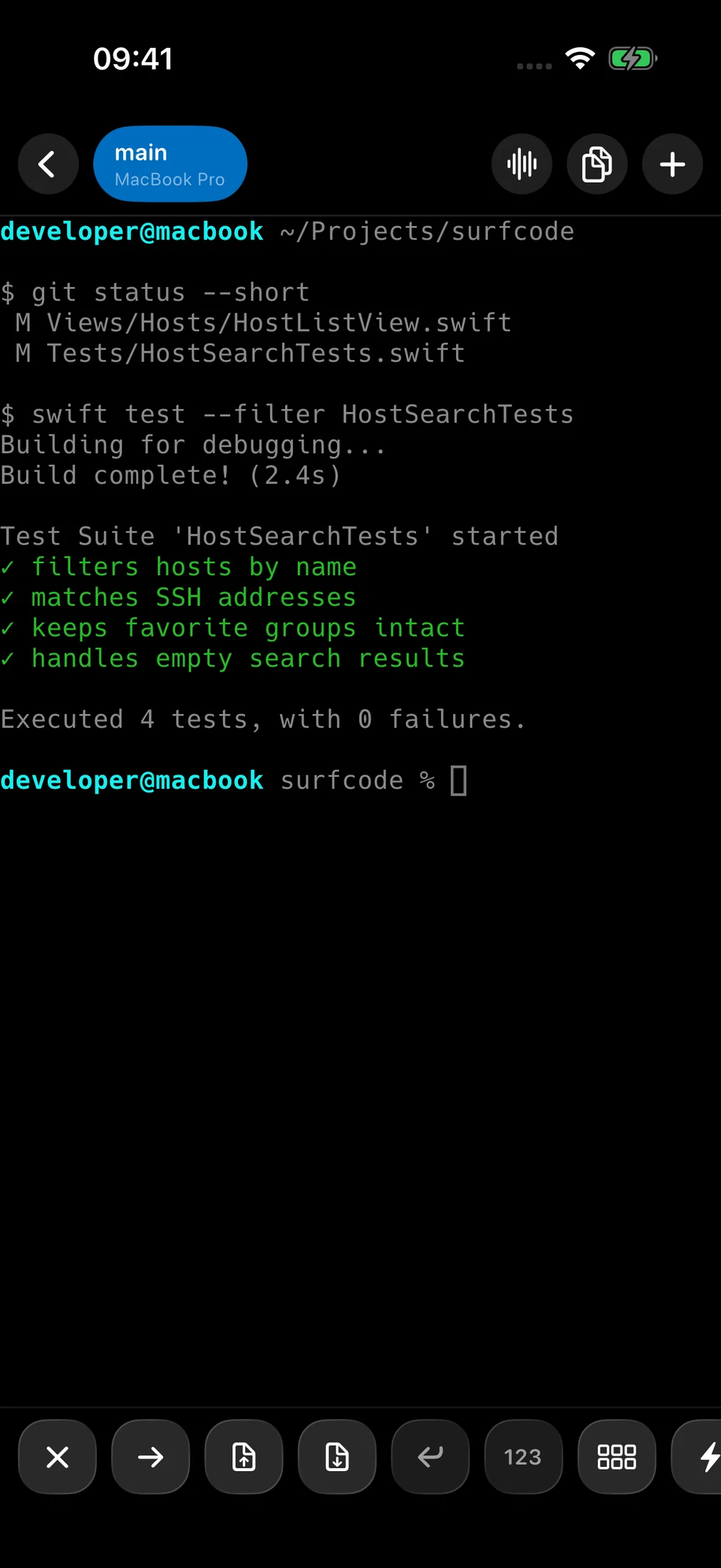
PTY-backed terminal access, tmux sessions, windows and panes, keyboard controls, scrolling and reusable terminal actions.
Explicit integration installation and runtime updates, host preferences, and guarded hosted-workspace deletion.
Device Keychain for supported credentials, local-first speech, deliberate cloud-transcription consent, and optional push enrollment. Projects and conversations are not automatically made public.
Not to a platform.
Not to a single AI.
Not to a format you can’t leave.
Your choices can change.
The work comes with you.
Keep the source and files in GitHub or another Git host you choose. Not just a preview you can’t take with you.
Build self-sovereign websites. Keep the source, use a domain you control, and choose where your website runs.
A capable successor can pick up your files and saved context. Your project’s future needn’t depend on one model or vendor.
Open-source systems, standard files and Git help you avoid lock-in—and keep moving as the tools around you change.
Ask your agent to maintain preferences, lessons and decisions as you iterate. Own its memory and your conversations, so the next round can build on the last.
Ownership is a way of working, not a magic export button. Hosting, Git accounts and agent handoffs may need setup. Retain and back up memory and conversations; don’t publish private history or secrets by accident.
Fourteen moments inside Englang.
Two minutes and forty-four seconds.
Englang is currently in a private pilot, and hosted workspaces require an approved account. If someone shared this with you, ask them about joining. Public signup isn’t available yet.
The hosted path doesn’t require connecting your own computer. You can begin by describing what you want in plain language. You’ll still need to review the work, and complex projects may need technical help. Advanced users can connect an existing SSH host instead.
Use your AI worker for websites, apps, presentations, documents and other file-based projects. The examples on this page are starting points, not guarantees of a finished result. Like any AI-created work, the output needs your review; publishing or distributing it may take additional setup.
Keep the notes, preferences and decisions your agent uses, alongside the conversations you choose to retain. Ask it to maintain that context as the project evolves. It can work better with those lessons without retraining its underlying model. You decide what to keep, and should back up that history—not assume every conversation is already saved in Git.
Real source files, Git history and saved context make that possible. A successor agent needs the right context, tools, permissions and setup; migration isn’t necessarily one click. Open foundations preserve choices, not a guarantee that every future tool will work unchanged.
Englang is the proposed name, from “English as a programming language.” The screenshots are real native views from the current Surfcode app, captured September 9–13 with fictional data. They are not mockups of a shipped rename. Some earlier controls and layouts have since evolved.
One phone. A few words. Something that’s yours.
See what’s possible