
Where Englang came from
I wanted to use my coding agents from my iPhone. A few months of working on real projects—and quite a few walks in the park—turned that into something more.
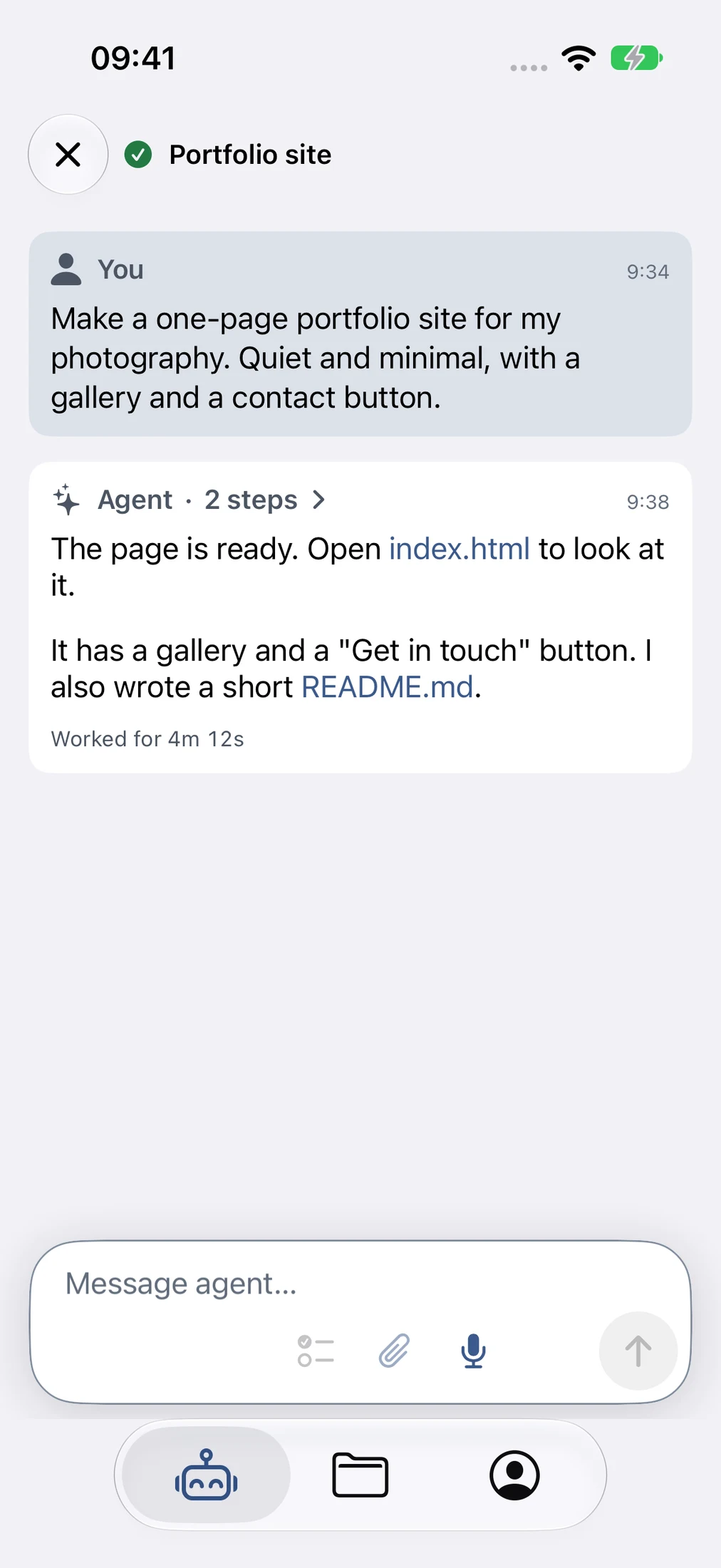
I started working on Englang because I wanted to use Pi, the coding agent, from my iPhone. I had agents running on my machines, and it felt unnecessary to open my laptop every time I wanted to check what they’d done or give them another task.
An SSH connection and a reasonably usable terminal on the phone seemed like enough to begin with.
The first versionFirst, it was just SSH and tmux
The first version was an iOS app that connected over SSH and let me interact with tmux sessions. Tmux keeps a terminal session running even when you disconnect, so I could open Pi on my phone and continue the same conversation I’d been having on my laptop.
I didn’t have a particularly ambitious plan for it. Looking back through the early development sessions, most of my requests were about making that setup less annoying: fix scrolling, make switching between windows easier, give me buttons for keyboard shortcuts, stop the keyboard from covering the terminal. There was also a memorable stretch of trying to make sure that disconnecting my phone didn’t detach my laptop’s terminal as well.
It was a small tool for my own use, and I kept adding things whenever I ran into something that bothered me.
Finding a better way inGetting tired of typing on a phone
Dictation is probably what changed the project the most.
I could already use Apple’s built-in dictation to enter prompts, but I wanted better transcription, especially for project names and technical terms. In June, I asked whether we could use something better and have it understand vocabulary specific to whatever project I was working on. That eventually became support for multiple transcription providers and vocabulary generated from the projects themselves.
Once that was working, I found myself giving longer, more useful instructions from my phone. It’s easier for me to explain a bug or talk through an idea than to type the same explanation on a small keyboard. I could review the transcript, correct anything that came out wrong, and send it to the agent.
Of course, using it regularly also exposed problems I hadn’t thought much about. At one point I dictated a prompt for a couple of minutes, submitted it, and the new agent never appeared. The prompt had disappeared too. I was annoyed enough to immediately ask for a fix through another session.
That’s where saved prompts and recovery became important. If I’ve spent time explaining something, the app should keep it even if transcription, the connection, or starting the agent goes wrong. It sounds obvious now, but a lot of the app has developed that way: I use it, something goes wrong, and that becomes the next thing to work on.
The other half of the conversationListening to agents while walking
In August, I asked for a feature that pushed Englang beyond being a terminal app. I wanted it to find the Pi agents that had finished working and read their responses aloud, so I could listen while walking.
Up to that point, I was still going from one tmux window to another to see what was happening. With a few agents running across different projects, that gets tedious. I wanted a screen where I could see which ones were busy and which ones had something for me to look at.
That became the agent overview. From there, it was natural to add playback for an individual response and a microphone button so I could reply directly to that agent. I could listen to what it had done, give it another instruction, and move on to the next one without navigating through terminals.
This is still one of the parts I find most useful. Sometimes I want to sit down and read carefully, but other times I just need an update or want to explain what should happen next. Being able to choose between reading, listening, typing, and speaking makes the app useful in more situations than an SSH client alone would be.
Beyond the responseWanting to see the actual work
The more I used it, the less satisfied I was with only seeing the agent’s response. If it changed a file, I wanted to look at the change. If it produced an HTML page, I wanted to open the page rather than read its source in a terminal. If I noticed a visual bug, I wanted to attach a screenshot and explain it.
So Englang gradually acquired readable conversations, activity updates, attachments, file previews, and ways to browse projects, commits, and diffs.
There’s a lot of fairly mundane interface work behind that. Looking through the sessions, I seem to spend a considerable amount of time asking for labels, panels, and intermediate screens to be removed. Some of those were useful while building a feature but just got in the way once I was using it every day. On an iPhone, it doesn’t take much clutter before the thing you actually want to read gets pushed off the screen.
The terminal is still available when I need it, but I use it less often now. Most of the time I can follow the conversation, inspect the result, and send another prompt from the agent screen.
Out in the real worldBuilding things while walking in the park
A lot of Englang’s development happened alongside work on two other projects: SPT, my public transport app for Sofia, which works only on iPhone, and Our Sofia, which I built to help people report problems around the city to the municipality and follow what happens to them. Our Sofia has both an iPhone app and an Android app.
Friends and family were using both and sending me feedback. While walking in the park, I could take something they’d reported, explain it to an agent through dictation, and ask it to work on a fix or a new feature. A little later, I’d check what it had done, look at the changes, and follow up with more instructions.
The projects I was working on
Actual app screenshots · Tap to enlarge
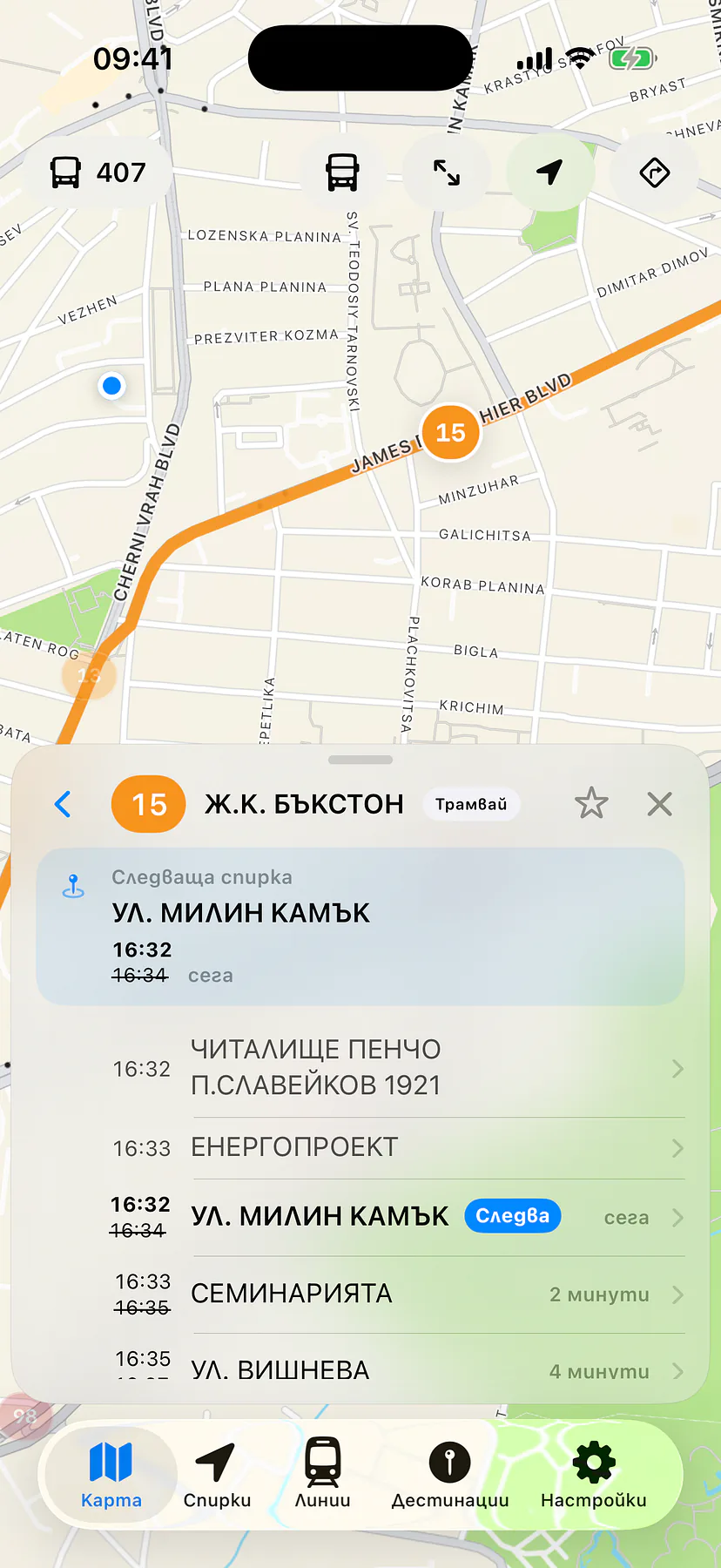
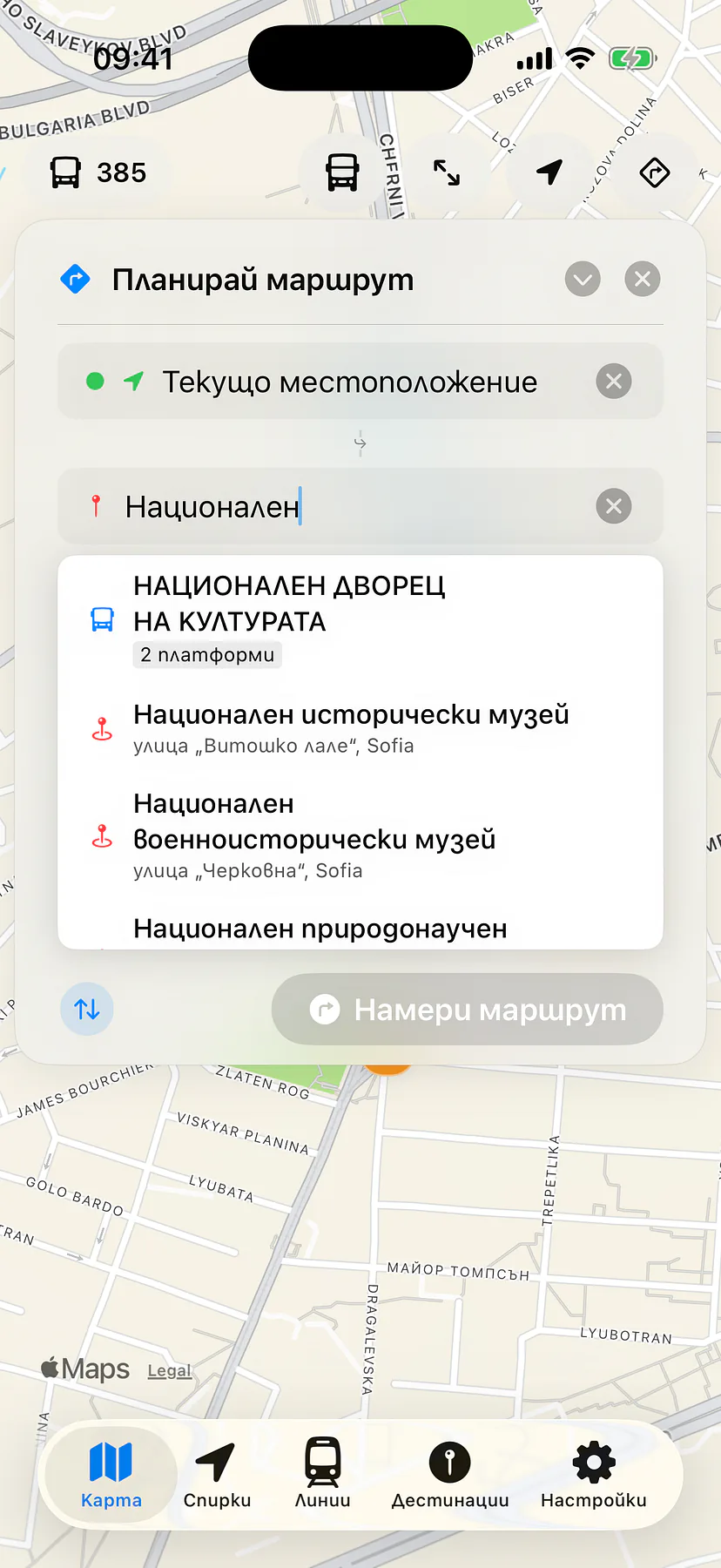
SPT
iPhone onlyGetting around Sofia by public transport, with live vehicles, upcoming stops, and route planning.
Our Sofia
iPhone + AndroidA way to browse and follow municipal reports about the things that need fixing around the city.
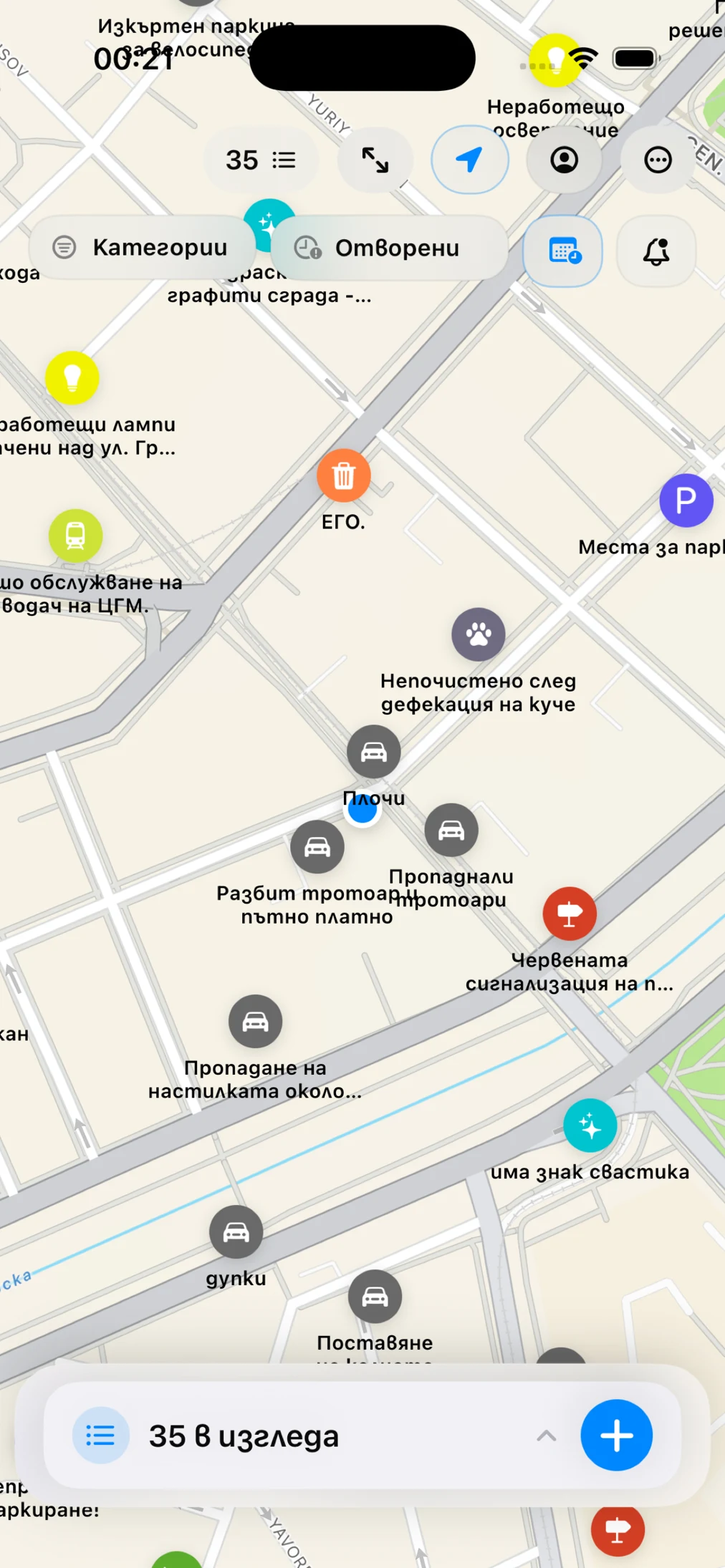
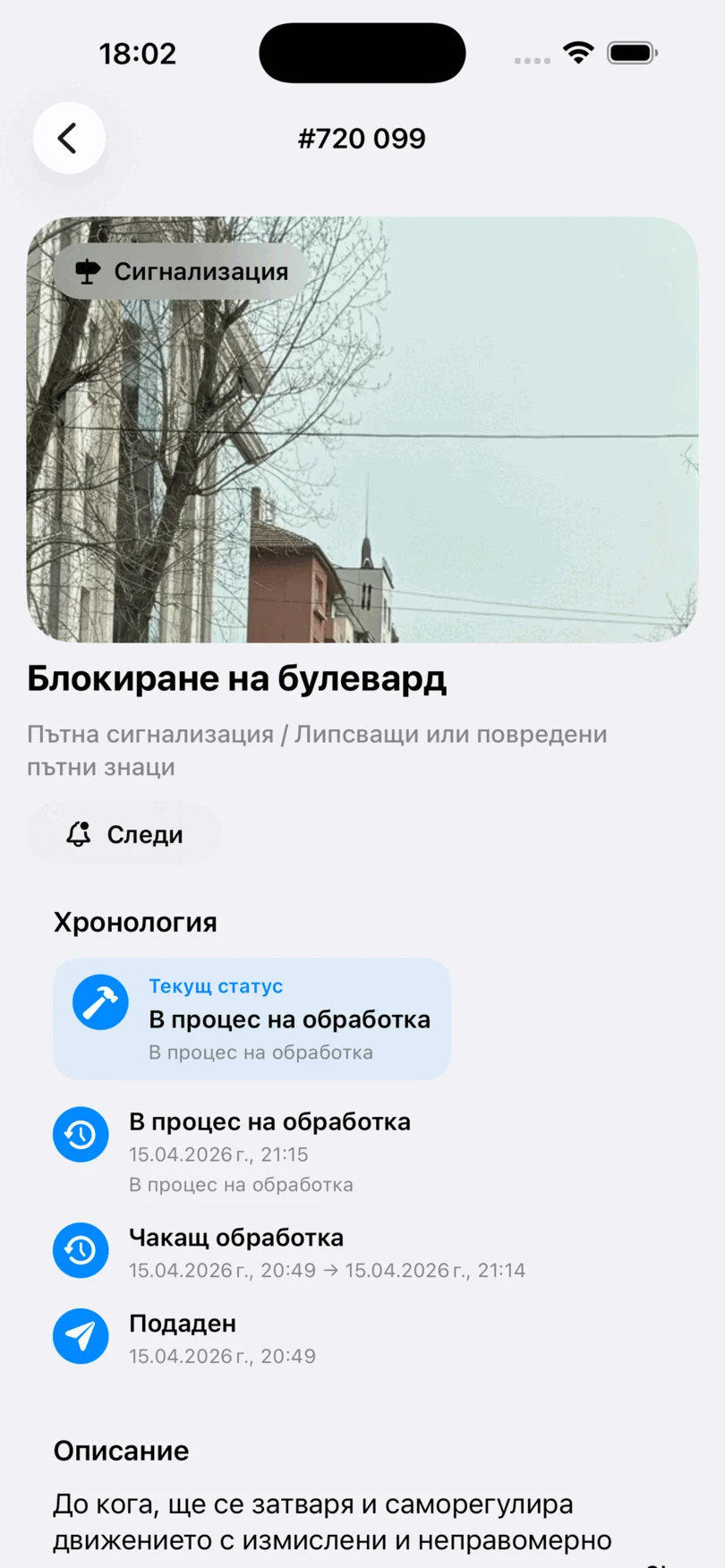
Screenshots from SPT and Our Sofia, shown on iPhone. Our Sofia is also available on Android.
Working on these projects remotely kept giving me reasons to improve Englang. If I couldn’t comfortably read an agent’s response, attach a screenshot, or see what it had changed, I’d ask another agent to improve that part of Englang itself. I was switching between building features for SPT or Our Sofia and fixing the tool I was using to build them.
That’s probably the best explanation for how Englang grew. I wasn’t sitting down with a long list of features a mobile agent app ought to have. I was trying to respond to someone’s feedback about a real project, from my phone, and finding out what was missing along the way.
I also occasionally use it to check on and send prompts to agents running for my day-to-day work at OP Labs, although Englang is a personal project.
I still use my laptop, and there are tasks I’d much rather do with a keyboard and a larger screen. But being able to make progress on something a friend or family member asked for, while out for a walk, has become a genuinely useful part of how I work.
Where it’s headingWhy Englang
As the app has grown, I’ve started thinking about it less as a way to remotely control my existing setup and more as a way to work on projects from a phone.
The name Englang was inspired by a tweet from Andrej Karpathy: English as a programming language. It’s the name the app has now.

Andrew Ng makes the same point in a minute and a half: now that software is easy to produce, everyone should learn to tell a computer what to do.
 Andrew Ng: One Skill to Stay Relevant in the Age of AIStanford Online · September 2026 · 1:29
I’m interested in making this useful to someone who has an idea for a website, an app, or another project but doesn’t particularly want to learn about SSH and tmux before getting started. Those tools were a convenient foundation for me; they don’t need to be the first thing everyone else encounters.
I also care about keeping the projects portable. I want the files and source to remain mine, stored in Git or somewhere else I choose, along with useful context that helps me continue the work later—even with a different agent.
There’s still plenty to improve, and I’m figuring out parts of the direction as I go. But it’s already become something I use regularly, well beyond the remote terminal I originally wanted. Most of that progress came from using it on real projects and finding one more thing I wished I could do from my phone.